2015 Toyota Tacoma Owner’s Manual — Connecting Bluetooth®
Interior and exterior features
The following can be performed using Bluetooth® wireless communication: ■ A portable audio player can be operated and listened to via multimedia system
■ Hands-free phone calls can be made via a cellular phone
In order to use wireless communication, register and connect a Bluetooth® device by performing the following procedures.
Device registration/connection flow
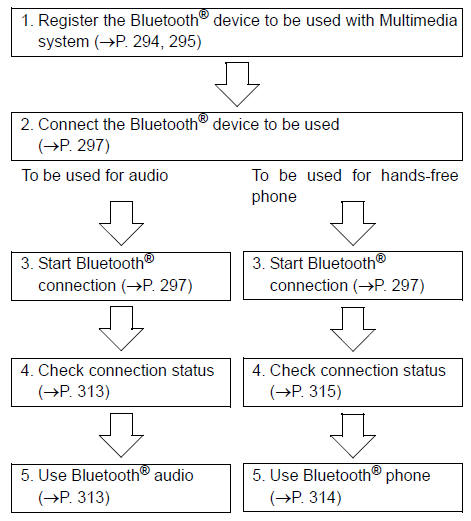
Registering and connecting from the “Bluetooth Setup” screen
To display the screen shown below, press the “SETUP” button and select “Bluetooth” on the “Setup” screen.
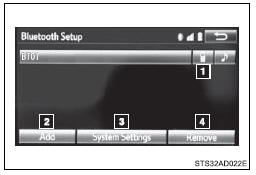
 Select to connect the device to be used with multimedia system.
 Select to register a Bluetooth® device to be used with multimedia system.
 Select to set detailed Bluetooth® system settings.
 Select to delete registered devices.
Registering a Bluetooth® audio player for the first time
To use the Bluetooth® Audio, it is necessary to register an audio player with the system.
Once the player has been registered, it is possible to use the Bluetooth® Audio.
This operation cannot be performed while driving.
For details about registering a Bluetooth® device
 Turn the Bluetooth® connection setting of your audio player on.
This function is not available when the Bluetooth® connection setting of your audio player is set to off.
 Press the “AUDIO” button.
 Select “
  Audio” on the “Select Audio Source” screen.
 Select “Select Device”.
 Follow the steps in “How to register a Bluetooth® device” from “STEP 2”.
Registering a Bluetooth® phone for the first time
To use the hands-free system, it is necessary to register a Bluetooth® phone with the system.
Once the phone has been registered, it is possible to use the handsfree system.
For details about registering a Bluetooth® device
 Turn the Bluetooth® connection setting of your cellular phone on.
 Press the
  button.
 Select “OK” to register a phone.
 Follow the steps in “How to register a Bluetooth® device” from “STEP 2”.
Registering a Bluetooth® device
Bluetooth® compatible phones (HFP) and portable audio players (AVP) can be registered simultaneously. You can register up to 5 Bluetooth® devices.
■ How to register a Bluetooth® device
 Display the “Bluetooth Setup” screen.
 Select “Add”.
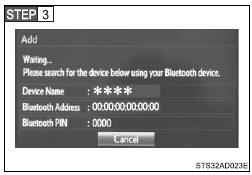
When this screen is displayed, search for the device name displayed on this screen on the screen of your Bluetooth® device.
For details about operating the Bluetooth® device, see the manual that comes with it.
To cancel the registration, select “Cancel”.
 Register the Bluetooth® device using your Bluetooth® device.
A PIN-code is not required for SSP (Secure Simple Pairing) compatible Bluetooth® devices. Depending on the type of Bluetooth® device being connected, a message confirming registration may be displayed on the Bluetooth® device’s screen. Respond and operate the Bluetooth® device according to the confirmation message.
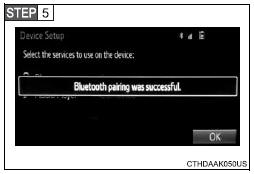
Check that this screen is displayed when registration is complete.
 Select “OK” when the connection status changes from “Connecting...” to “Connected”.
If an error message is displayed, follow the guidance on the screen to try again.
Registration can be performed from screens other than the “Bluetooth Setup” screen.
■ When registering from the “Bluetooth Audio” scree
 Display the “Bluetooth Audio” screen.
 Select “Select Device”.
 Follow the steps in “How to register a Bluetooth® device” from “STEP 2”.
■ Deleting a Bluetooth® device
 Display the “Bluetooth Setup” screen.
 Select “Remove”.
 Select the desired device.
 A confirmation message will be displayed, select “Yes” to delete the device.
 Check that a confirmation screen is displayed when the operation is complete.
Connecting a Bluetooth® device
Up to 5 Bluetooth® devices (Phones (HFP) and audio players (AVP)) can be registered.
If more than 1 Bluetooth® device has been registered, select which device to connect to.
 Press the “SETUP” button.
 Select “Bluetooth” on the “Setup” screen.
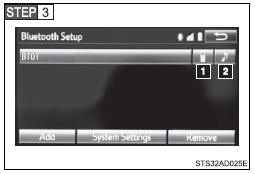
Select the device to be connected.
Supported profile icons will be displayed.
 Phone
Phone
 Audio player
Supported profile icons for currently connected devices will illuminate.
Dimmed icons can be selected to connect to the function directly.
■ Auto connection
To turn auto connection mode on, set “Bluetooth Power” to on.
When you register a phone, auto connection will be activated.
Always set it to this mode and leave the Bluetooth® phone in a place where a connection can be established.
When the engine switch is turned to the “ACC” or “ON” position, the system will search for a nearby cellular phone you have registered.
Next, the system automatically connects with the most recent of the phones connected to in the past. Then, the connection result is displayed.
■ Manual connection
When auto connection has failed or “Bluetooth Power” is turned off, you must connect the Bluetooth® device manually.
Follow the steps in “Connecting a Bluetooth® device” from “STEP 1”.
■ Connecting a Bluetooth® audio player
 Registering an additional device
 Select “Select Device” on the “Bluetooth Audio” screen.
 For more information:
 Selecting a registered device
 Select “Select Device” on the “Bluetooth Audio” screen.
 For more information
■Reconnecting a Bluetooth® phone
If the system cannot connect due to poor signal strength with the engine switch in the “ACC” or “ON” position, the system will automatically attempt to reconnect.
If the phone is turned off, the system will not attempt to reconnect. In this case, the connection must be made manually, or the phone must be reselected.
Displaying a Bluetooth® device details
You can confirm and change the registered device details.
■ Bluetooth® device registration status
 Display the “Bluetooth Setup” screen.
 Select the device.
 Select “Device Info”.
 Following screen is displayed
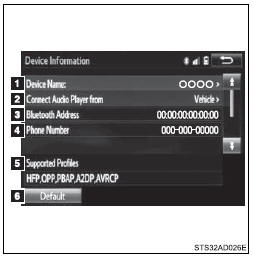
 Device name
 Change connection method
 Bluetooth® address
 Display your telephone number
The number may not be displayed depending on the model of phone.
 Compatibility profile of the device
 Restore default settings
■ Changing connection method
 Select “Connect Audio Player from”.
 Select “Vehicle” or “Device”.
“Vehicle”: Connect the multimedia system to the portable audio player.
“Device”: Connect the portable audio player to the multimedia system.
Detailed Bluetooth® system settings
You can confirm and change the detailed Bluetooth® settings.
■ How to check and change detailed Bluetooth® settings
 Display the “Bluetooth Setup” screen.
 Select “System Settings”.
 The following screen is displayed:
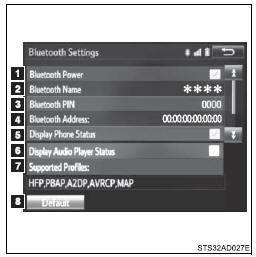
 Bluetooth® power on/off
You can change Bluetooth® function on/off
 Bluetooth® name
 Change PIN-code
 Bluetooth® address
 Display phone status
You can set the system to show the status confirmation display when connecting a telephone
 Display audio player status
You can set the system to show the status confirmation display when connecting an audio player
 Compatibility profile of the system
 Restore default settings
■ Editing the Bluetooth® PIN
You can change the PIN-code that is used to register your Bluetooth® devices in the system.
 Select “Bluetooth® PIN”.
 Input a PIN-code, and select “OK”.
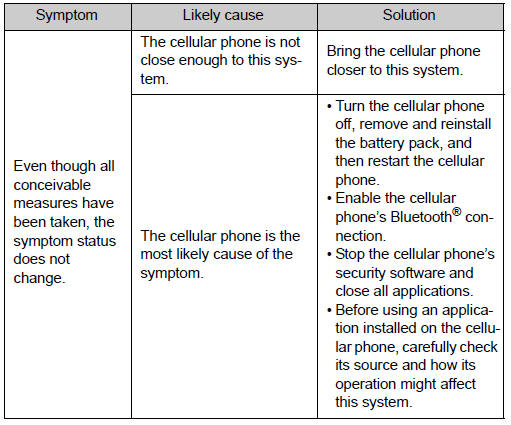
What to do if... (Troubleshooting)
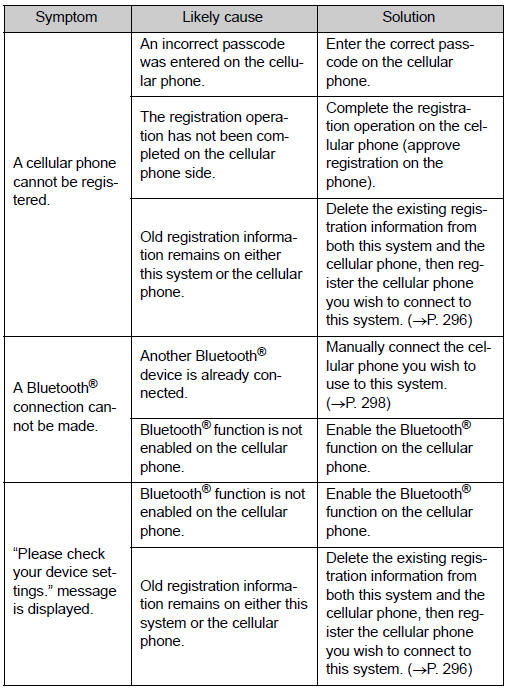
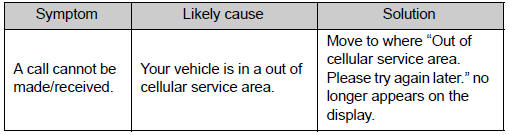
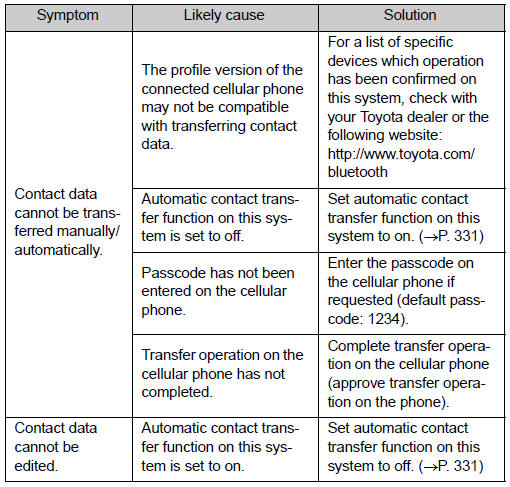
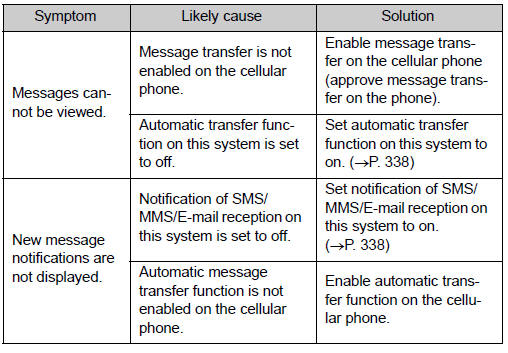
If there is a problem with the hands-free system or a Bluetooth® device, first check the table below.
 When using the hands-free system with a Bluetooth® device
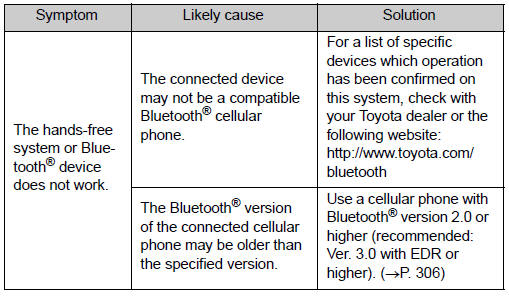
 When registering/connecting a cellular phone
 When making/receiving a call
 When using the contacts
 When using the Bluetooth® message function
 In other situations
Bluetooth®
■About Bluetooth®
The Bluetooth® word mark and logos are registered trademarks owned Bluetooth SIG, Inc. and any use of such marks by Panasonic Corporation is under license.
Other trademarks and trade names are those of their respective owners.
■When using the Bluetooth® audio system
●In the following conditions, the system may not function.
• If the portable audio player is turned off
• If the portable audio player is not connected
• If the portable audio player’s battery is low
●There may be a delay if a cellular phone connection is made during Bluetooth® audio play.
●Depending on the type of portable audio player that is connected to the system, operation may differ slightly and certain functions may not be available.
■When using the hands-free system
●The multimedia system is muted when making a call.
●If both parties speak at the same time, it may be difficult to hear.
●If the received call volume is overly loud, an echo may be heard.
If the Bluetooth® phone is too close to the system, quality of the sound may deteriorate and connection status may deteriorate.
●In the following circumstances, it may be difficult to hear the other party: • When driving on unpaved roads
• When driving at high speeds
• If a window is open
• If the air conditioning is blowing directly on the microphone
• If there is interference from the network of the cellular phone
■Conditions under which the system will not operate
●If using a cellular phone that does not support Bluetooth®
●If the cellular phone is turned off
●If you are outside of cellular phone service coverage
●If the cellular phone is not connected
●If the cellular phone’s battery is low
●When outgoing calls are controlled, due to heavy traffic on telephone lines, etc.
●When the cellular phone itself cannot be used
●When transferring contact data from the cellular phone
■Bluetooth® antenna
The antenna is built into the display.
If the portable audio player is behind the seat or in the glove box or console box, or is touching or covered by metal objects, the connection status may deteriorate.
If the cellular phone is behind the seat or in the console box, or touching or covered by metal objects, the connection status may deteriorate.
■Battery charge/signal status
●This display may not correspond exactly with the portable audio player or cellular phone itself.
●This system does not have a charging function.
●The portable audio player or cellular phone battery will be depleted quickly when the device is connected to Bluetooth®.
■When using the Bluetooth® audio and hands-free system at the same time
The following problems may occur.
●The Bluetooth® audio connection may be interrupted.
●Noise may be heard during Bluetooth® audio playback.
■About the contact in this system
The following data is stored for every registered cellular phone. When another phone is connecting, you cannot read the registered data.
●Contact data
●Call history
●Favorite
●Message
When removing a Bluetooth® phone from the system, the above-mentioned data is also deleted.
■Compatible models
The Bluetooth® audio system supports portable audio players with the following specifications
●Bluetooth® specifications: Ver. 2.0, or higher (Recommended: Ver. 3.0+EDR or higher) ●Profiles: • A2DP (Advanced Audio Distribution Profile) Ver. 1.0, or higher (Recommended: Ver. 1.2 or higher) This is a profile to transmit stereo audio or high quality sound to the multimedia system.
• AVRCP (Audio/Video Remote Control Profile) Ver. 1.0 or higher (Recommended: Ver. 1.4 or higher) This is a profile to allow remote control the A/V equipment.
However, please note that some functions may be limited depending on the type of portable audio player connected.
The hands-free system supports cellular phones with the following specifications.
• Bluetooth® specification: Ver. 2.0 or higher (Recommended: Ver. 3.0+EDR or higher)
●Profiles: • HFP (Hands Free Profile) Ver. 1.0 or higher (Recommended: Ver. 1.6 or higher) This is a profile to allow hands-free phone calls using a cellular phone or head set. It has outgoing and incoming call functions.
• OPP (Object Push Profile) Ver. 1.1 or higher (Recommended: Ver. 1.2) This is a profile to transfer contact data. When a Bluetooth® compatible cellular phone has both PBAP and OPP, OPP cannot be used.
• PBAP (Phone Book Access Profile) Ver. 1.0 or higher (Recommended: Ver. 1.1) This is a profile to transfer contact data.
If the cellular phone does not support HFP, you cannot register it with the hands-free system. OPP, PBAP services must be selected individually.
■Certifications for the Bluetooth®
 For vehicles sold in U.S.A.
FCC ID: ACJ932YEAP01A446 This device complies with Part 15 of the FCC Rules. Operation is subject to the following two conditions: (1) this device may not cause harmful interference, and (2) this device must accept any interference received, including interference that may cause undesired operation.
 For vehicles sold in Canada
IC: 216J-YEAP01A446
This device complies with Industry Canada licence-exempt RSS standard( s). Operation is subject to the following two conditions: (1) this device may not cause interference, and (2) this device must accept any interference, including interference that may cause undesired operation of the device.
This radio transmitter (identify the device by certification number, or model number if Category II) has been approved by Industry Canada to operate with the antenna types listed below with the maximum permissible gain and required antenna impedance for each antenna type indicated. Antenna types not included in this list, having a gain greater than the maximum gain indicated for that type, are strictly prohibited for use with this device.
The latest original “DECLARATION of CONFORMITY” (DoC) is available at the address stated.
■Reconnecting the portable audio player
If the portable audio player is disconnected due to poor reception when the engine switch is in the “ACC” or “ON” position, the system automatically reconnects the portable audio player.
If you have switched off the portable audio player yourself, follow the instructions below to reconnect: ●Select the portable audio player again
●Enter the portable audio player
■When you sell your car
Be sure to delete your personal data.
CAUTION
■FCC WARNING
Changes or modifications not expressly approved by the party responsible for compliance could void the user’s authority to operate the equipment.
Radio frequency radiation exposure information: This equipment complies with FCC radiation exposure limits set forth for an uncontrolled environment.
This equipment should be installed and operated with minimum distance of 7.9 in. (20 cm) between the radiator and your body.
This transmitter must not be co-located operating in conjuction with any other antenna or transmitter.
■While driving
Do not use the portable audio player, cellular phone or connect a device to the Bluetooth® system.
CAUTION
■Caution regarding interference with electronic devices
●Your audio unit is fitted with Bluetooth® antennas. People with implanted pacemakers or cardiac defibrillators should maintain a reasonable distance between themselves and the Bluetooth® antennas. The radio waves may affect the operation of such devices.
●Before using Bluetooth® devices, users of any electrical medical device other than implanted pacemakers and implanted cardiac defibrillators should consult the manufacturer of the device for information about its operation under the influence of radio waves. Radio waves could have unexpected effects on the operation of such medical devices.
NOTICE
■When leaving the vehicle
Do not leave your portable audio player or cellular phone in the vehicle. The inside of the vehicle may become hot, causing damage to the portable audio player or cellular phone.
Listening to Bluetooth® audio
The Bluetooth® audio system enables the user to enjoy music played on a portable player from the vehicle speakers via wireless communication.
Select “ Audio” on the “Select Audio Source” screen.
When a Bluetooth® device cannot be connected, check the connection status on the “Bluetooth Audio” screen. If the device is not connected, either register or reconnect the device.
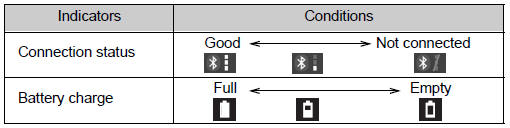
Audio control screen
Some titles and controls may not be displayed depending on the type of portable audio player used.
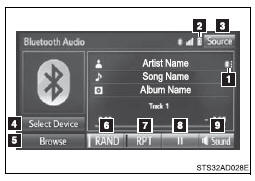
 Connection status
 Battery charge
 “Select Audio Source” screen appears
 Selecting a Bluetooth® device
 Select to display the play mode selection screen
 Random playback
 Repeat play
 Pause
Pause
Select  to resume play
 Setting the sound
Using a Bluetooth® phone
The hands-free system is a function that allows you to use your cellular phone without touching it.
This system supports Bluetooth®. Bluetooth® is a wireless data system that allows the cellular phone to wirelessly connect to the hands-free system and make/receive calls.
Before making a phone call, check the connection status, battery charge, call area and signal strength.
If a Bluetooth® device cannot be connected, check the connection status on the phone screen. If the device is not connected, either register or reconnect it.
Phone screen
To display the screen shown below, press the  switch on the steering wheel or press the
  button.
Several functions are available to operate on each screen that is displayed by selecting the 4 tabs.
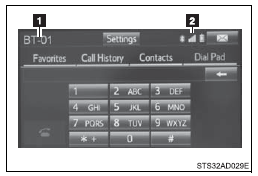
 Device name
 Bluetooth® connection status
■ Microphone
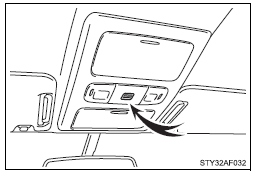
The vehicle’s built in microphone is used when talking on the phone.
The person you are speaking to can be heard from the front speakers.
To use the hands-free system, you must register your Bluetooth® phone in the system.
Status display
You can check indicators such as signal strength and battery charge on any screen.
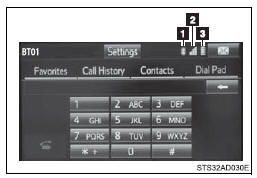
 Connection status
 Signal strength
 Battery charge
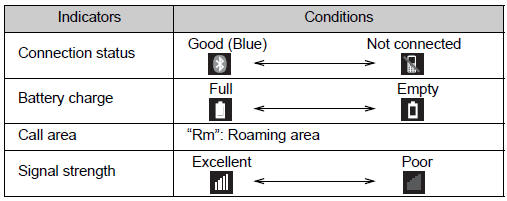
Making a call
Once a Bluetooth® phone is registered, you can make a call using the following procedure:
■ Dialing
 Display the phone screen.
 Select the “Dial Pad” tab and enter a phone number.
To delete the input phone number, select  .
.
For the first digit, you can enter “+” by selecting “ ” for a while.
 Press the
  switch on the steering wheel or select
  .
.
■ Dialing from the contacts list
You can dial a number from the contact data imported from your cellular phone. The system has one contact for each registered phone. Up to 2500 contacts may be stored in each contact.
 Display the phone screen.
 Select “Contacts” tab.
 Choose the desired contact to call from the list.
 Choose the number and then press the
  switch on the steering wheel or select
  .
.
■ When the contact is empty
You can transfer the phone numbers in a Bluetooth® phone to the system.
Operation methods differ between PBAP (Phone Book Access Profile) compatible and PBAP incompatible Bluetooth® phones. If the cellular phone does not support either PBAP or OPP (Object Push Profile) service, you cannot transfer contacts.
● For PBAP compatible Bluetooth® phones
 When “Automatic Contact/History Transfer” is set to on
 Select the “Contacts” tab.
 Check that a confirmation screen is displayed when the operation is complete.
Transfer the contact data to the system using a Bluetooth® phone.
 When “Automatic Contact/History Transfer” is set to off
 Select the “Contacts” tab.
 Select the desired item.
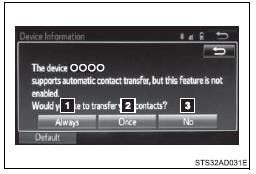
 Select to transfer new contacts from a cellular phone, select “Always” and then enable “Automatic Transfer”.
 Select to transfer all the contacts from a connected cellular phone only once.
 Select to cancel transferring.
 Check that a confirmation screen is displayed when the operation is complete.
● For PBAP incompatible but OPP compatible Bluetooth® phones
 Select the “Contacts” tab.
 Follow the steps in “Update contacts from phone” from “STEP 2”.
■ Calling using favorites list
You can make a call using numbers registered in the contact.
 Display the phone screen.
 Select “Favorites” tab.
 Select the desired number to make a call.
■ Dialing from call history
You can make a call using the call history, which has the 3 functions below.
 calls which you missed
 calls which you received
 calls which you made
 Display the phone screen.
 Select “Call History” tab.
 Select
  or the desired entry from the list.
 When
When  is selected
 Check that the “Call” screen is displayed.
 When the desired contact is selected
 Select the desired number.
 Check that the “Call” screen is displayed.
■Call history list
●If you make a call to or receive a call from a number registered in the contact, the name is displayed in the call history.
●If you make multiple calls to the same number, only the last call made is displayed in the call history.
■International calls
You may not be able to make international calls, depending on the mobile phone in use.
Receiving a call
When a call is received, the following screen is displayed together with a sound.
■ To answer the phone
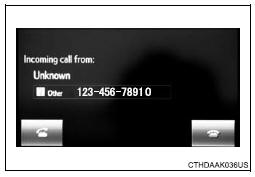
Press the  switch on the steering wheel or select
  .
.
■ To refuse a call
Press the  switch on the steering wheel or select
  .
.
■ To adjust the incoming call volume
Turn the “PWR·VOL” knob.
■International calls
Received international calls may not be displayed correctly depending on the cellular phone in use.
Speaking on the phone
The following screen is displayed when speaking on the phone.
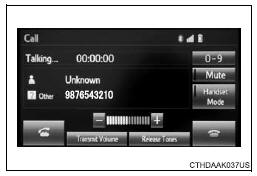
■ To adjust the call volume
Select “-” or “+”. You can also adjust the volume using the volume knob.
■ To prevent the other party from hearing your voice
Select “Mute”.
■ Inputting tones
When using phone services such as an answering service or a bank, you can store phone numbers and code numbers in the contact.
 Select “0-9”.
 Input the number.
● Release Tones
“Release Tones” appear when a continuous tone signal(s) containing a “w” is registered in the contact list.
 Select “Release Tones”.
■Release Tones
●A continuous tone signal is a character string that consists of numbers and the characters “p” or “w”. (e.g.056133w0123p#1∗) ●When the “p” pause tone is used, the tone data up until the next pause tone will be automatically sent after 2 seconds have elapsed. When the “w” pause tone is used, the tone data up until the next pause tone will be automatically sent after a user operation is performed.
●Release tones can be used when automated operation of a phone based service such as an answering machine or bank phone service is desired.
A phone number with continuous tone signals can be registered in the contact list.
●Tone data after a “w” pause tone can be operated on voice command during a call.
■ To transfer a call
Select “Handset Mode” to change from a hands-free call to a cellular phone call.
Select “Handset Mode” to off from a cellular phone call to a handsfree call.
■ Transmit volume setting
 Select “Transmit Volume”.
 Select the desired level for the transmit volume.
 Select “OK”.
■ To hang up
Press the  switch on the steering wheel or select
  .
.
■ Call waiting
When a call is interrupted by a third party while talking, an incoming call message will be displayed.
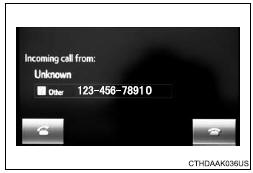
To talk with the other party: Press the  switch on the steering wheel or select
  .
.
To refuse the call: Press the  switch on the steering wheel or select
  .
.
Every time you press the  switch on the steering wheel or select
  during call waiting, you will be switched to the other party.
■Transferring calls
●If you transfer from the cellular phone to hands-free, the hands-free screen will be displayed, and you can operate the system using the screen.
●Transfer method and operation may vary according to the cellular phone used.
●For operation of the cellular phone in use, see the phone’s manual.
■Call waiting operation
Call waiting operation may differ depending on your phone company and cellular phone.
Bluetooth® phone message function
Received messages can be forwarded from the connected Bluetooth® phone, enabling checking and replying using the multimedia system.
Depending on the type of Bluetooth® phone connected, received messages may not be transferred to the message inbox.
If the phone does not support the message function, this function cannot be used.
■ Displaying “Message Inbox” screen
 Press the
  switch on the steering wheel or press the
  button.
 Select
  on the phone screen.
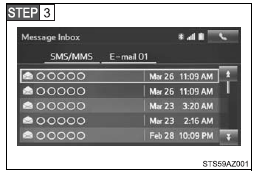
Check that the “Message Inbox” screen is displayed.
■ Receiving a message
When an e-mail/SMS/MMS is received, the incoming message screen pops up with sound and is ready to be operated on the screen.
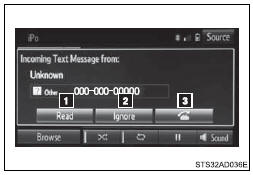
 E-mail: Select to check the message.
 Select to refuse the message.
 Select to call the message sender.
■Receiving a message
●Depending on the cellular phone used for receiving messages, or its registration status with the navigation system, some information may not be displayed.
●The pop up screen is separately available for incoming e-mail and SMS/ MMS messages under the following conditions: E-mail: • “Incoming E-mail Display” is set to “Full Screen”.
• “E-mail Notification Popup” is set to on. (→P. 338) SMS/MMS:
■ Checking the messages
 Display the “Message Inbox” screen.
 Select the desired message from the list.
 Check that the message is displayed.
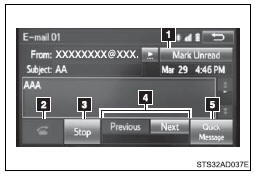
 E-mails: Select “Mark Unread” or “Mark Read” to mark mail unread or read on the “Message Inbox” screen.
This function is available when “Update Message Read Status on Phone” is set to on
 Select to make a call to the sender.
 Select to have messages read out. To cancel this function, select “Stop”.
 Select to display the previous or next message.
 Select to reply the message.
■Check the messages
●Depending on the type of Bluetooth® phone being connected, it may be necessary to perform additional steps on the phone.
●Messages are displayed in the appropriate connected Bluetooth® phone’s registered mail address folder.
Select the tab of the desired folder to be displayed.
●Only received messages on the connected Bluetooth® phone can be displayed.
●The text of the message is not displayed while driving.
●When “Automatic Message Readout” is set to on, messages will be automatically read out.
●Turn the “PWR⋅VOL” knob to adjust the message read out volume.
●The message read out function is available even while driving.
■ Replying to a message
 Display the “Message Inbox” screen.
 Select the desired message from the list.
 Select “Quick Message”.
 Select the desired message.
 Select “Send”.
● Editing quick reply message
This operation cannot be performed while driving.
 Select “Quick Message”.
 Select
  corresponding to the desired message to edit.
 Select “OK” when editing is completed.
■ Calling the message sender
Calls can be made to an e-mail/SMS/MMS message sender’s phone number.
 Display the “Message Inbox” screen.
 Select the desired message.
 Select
  .
.
 Check that the “Call” screen is displayed.
● Calling from a number within a message
Calls can be made to a number identified in a message’s text area.
 Display the “Message Inbox” screen.
 Select the desired message.
 Select the text area.
 Select
  corresponding to the desired number.
 Check that the “Call” screen is displayed.
● Calling from the incoming message screen
Using the steering wheel switches (if equipped)
The steering wheel switches can be used to operate a connected cellular phone.
■ Operating a telephone using the steering wheel switches
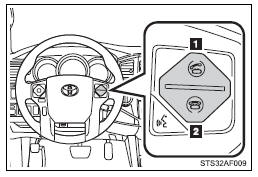
 Off hook switch
• Make a call
• Receive a call
• Display “Phone” screen
 On hook switch
• End a call
• Refuse a call
Bluetooth® phone settings
You can adjust the hands-free system to your desired settings.
■ “Phone/Message Settings” screen
To display the screen shown below, press the “SETUP” button, and select “Phone” on the “Setup” screen.
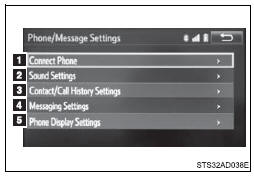
 Set the phone connection
 Sound Settings
 Contact/Call History Settings
 Messaging Settings
 Phone Display Settings
■ Sound setting
 Display the “Phone/Message Settings” screen.
 Select “Sound Settings” on the “Phone/Message Settings” screen.
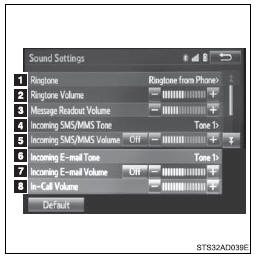
 Set the desired ringtone.
 Adjust the ringtone volume.
 Adjust the message readout volume.
 Set the desired incoming SMS/MMS tone.
 Adjust the incoming SMS/ MMS tone volume.
 Set the incoming e-mail tone.
 Adjust the incoming e-mail tone volume.
 Adjust the default volume of the other party’s voice.
■To return to the default settings
Select “Default”, and then “Yes”.
Contact/Call history settings
The contact can be transferred from a Bluetooth® phone to the system.
The contact also can be added, edited and deleted.
The call history can be deleted and contact and favorites can be changed.
 Display the “Phone/Message Settings” screen.
 Select “Contact/Call History Settings”.
 Select the desired item to be set.
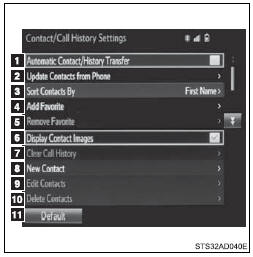
 For PBAP compatible Bluetooth® phones, select to set automatic contact/history transfer on/off. When set to on, the phone’s contact data and history are automatically transferred.
 Select to update contacts from the connected phone.
 Select to sort contacts by the first name or last name field.
 Select to add contacts to the favorites list.
 Select to delete contacts from the favorites list.
 Select to display contact images.
 Select to clear contacts from the call history.
 Select to add new contacts to the contact list.*
 Select to edit contacts in the contact list.*
 Select to delete contacts from the contact list.*
 Select to reset all setup items.*
*: For PBAP compatible Bluetooth® phones only, this function is available when “Automatic Contact/ History Transfer” is set to off.
■ Update contacts from phone
Operation methods differ between PBAP compatible and PBAP incompatible but OPP compatible Bluetooth® phones.
If your cellular phone is neither PBAP nor OPP compatible, the contacts cannot be transferred.
● For PBAP Compatible Bluetooth® Phones
 Select “Update Contacts from Phone”.
 Check that a confirmation screen is displayed when the operation is complete.
This operation may be unnecessary depending on the type of cellular phone.
Depending on the type of cellular phone, OBEX authentication may be required when transferring contact data. Enter “1234” into the Bluetooth® phone.
If another Bluetooth® device is connected when transferring contact data, depending on the phone, the connected Bluetooth® device may need to be disconnected.
Depending on the type of Bluetooth® phone being connected, it may be necessary to perform additional steps on the phone.
● For PBAP Incompatible Bluetooth® Phones
 Select “Update Contacts from Phone”.
 Transfer the contact data to the system using a Bluetooth® phone.
This operation may be unnecessary depending on the type of cellular phone.
Depending on the type of cellular phone, OBEX authentication may be required when transferring contact data. Enter “1234” into the Bluetooth® phone.
To cancel this function, select “Cancel”.
 Select “Done” when it appears on the screen.
 Check that a confirmation screen is displayed when the operation is complete.
● Updating the contacts in a different way (From the “Call History” screen)
For PBAP compatible Bluetooth® phones, this function is available when “Automatic Contact/History Transfer” is set to off.
 Display the phone screen.
 Select the “Call History” tab and select a contact not yet registered in the contact list.
 Select “Update Contact”.
 Select the desired contact.
 Select a phone type for the phone number.
■ Registering a new contact to the contact list
New contact data can be registered. Up to 4 numbers per person can be registered. For PBAP compatible Bluetooth® phones, this function is available when “Automatic Contact/History Transfer” is set to off.
 Select “New Contact”.
 Enter the name and select “OK”.
 Enter the phone number and select “OK”.
 Select the phone type for the phone number.
 To add another number to this contact, select “Yes”.
● Registering a new contact in a different way (From the “Call History” screen)
 Display the phone screen.
 Select the “Call History” tab and select a contact not yet registered in the contact list.
 Select “Add to Contacts”.
 Follow the steps in “Registering a new contact to the contact list” from “STEP 3”.
■ Editing the contact data
For PBAP compatible Bluetooth® phones, this function is available when “Automatic Contact/History Transfer” is set to off.
 Select “Edit Contact”.
 Select the desired contact.
 Select
  corresponding to the desired name or number.
 For editing the name
 Follow the steps in “Registering a new contact to the contact list” from “STEP 3”.
 For editing the number
 Follow the steps in “Registering a new contact to the contact list” from “STEP 4”.
● Editing the contacts in a different way (From the “Contact Details” screen)
 Display the phone screen.
 Select the “Contacts”, “Call History” tab or the “Favorites” tab and select the desired contact.
 Select “Edit Contact”.
“E-mail Addresses”: Select to display all registered e-mail addresses for the contact.
 Follow the steps in “Editing the contact data” from “STEP 4”.
■ Deleting the contact data
For PBAP compatible Bluetooth® phones, this function is available when “Automatic Contact/History Transfer” is set to off.
 Select “Delete Contacts”.
 Select the desired contact and select “Delete”.
 Select “Yes” when the confirmation screen appears.
● Deleting the contact in a different way (From the “Contact Details” screen)
Display the phone screen.
Select the “Contacts”, “Call History” tab or the “Favorites” tab and select the desired contact.
Select “Edit Contact”.
Select “Yes” when the confirmation screen appears.
■ Favorites list setting
Up to 15 contacts (maximum of 4 numbers per contact) can be registered in the favorites list.
● Registering the contacts in the favorites list
 Select “Add Favorite”.
 Select the desired contact to add to the favorites list.
Dimmed contacts are already stored as a favorite.
 Check that a confirmation screen is displayed when the operation is complete.
 When 15 contacts have already been registered to the favorites list
 When 15 contacts have already been registered to the favorites list, a registered contact needs to be replaced.
Select “Yes” when the confirmation screen appears to replace a contact.
 Select the contact to be replaced.
 Check that a confirmation screen is displayed when the operation is complete.
 Registering contacts in the favorites list in a different way (from the “Contacts” screen)
 Display the phone screen.
 Select the “Contacts” tab.
 Select
  at the beginning of the desired contact list name to be registered in the favorites list.
When selected,  is changed to
  , and the contact is registered in the favorites list.
 Registering contacts in the favorites list in a different way (from the “Contact Details” screen)
 Display the phone screen.
 Select the “Contacts” tab or the “Call History” tab and select the desired contact.
 Select “Add Favorite”.
 Check that a confirmation screen is displayed when the operation is complete.
● Deleting the contacts in the favorites list
 Select “Remove Favorite”.
Select the desired contacts and select “Remove”.
Select “Yes” when the confirmation screen appears.
Check that a confirmation screen is displayed when the operation is complete.
 Deleting contacts in the favorites list in a different way (from the “Contacts” screen)
Display the phone screen.
Select the “Contacts” tab.
Select  at the beginning of the contact list name to be deleted from the favorites. list.
When selected,  is changed to
  , and the data is deleted from the list.
 Deleting contacts in the favorites list in a different way (from the “Contact Details” screen)
 Display the phone screen.
Select the “Contacts”, “Call History” tab or the “Favorites” tab and select the desired contact to delete.
Select “Remove Favorite”.
Select “Yes” when the confirmation screen appears.
 Check that a confirmation screen is displayed when the operation is complete.
■ Message Settings
 Display the “Phone/Message Settings” screen.
 Select “Messaging Settings”.
 Select the desired item to be set.
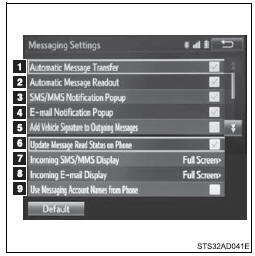
 Set automatic message transfer on/off.
 Set automatic message readout on/off.
 Set the SMS/MMS notification popup on/off.
 Set the e-mail notification popup on/off.
 Set adding the vehicle signature to outgoing messages on/ off.
 Set updating message read status on phone on/off.
 Change the incoming SMS/ MMS display.
“Full Screen”: When an SMS/ MMS message is received, the incoming SMS/MMS display screen is displayed and can be operated on the screen.
“Drop-Down”: When an SMS/ MMS message is received, a message is displayed on the upper side of the screen.
 Change the incoming e-mail display.
“Full Screen”: When an e-mail is received, the incoming e-mail display screen is the displayed and can be operated on the screen.
“Drop-Down”: When an e-mail is received, a message is displayed on the upper side of the screen.
 Set display of messaging account names on the inbox tab on/off.
When set to on, messaging account names used on the cellular phone will be displayed.
● Displaying the “Messaging Settings” screen in a different way
 Display the phone screen.
 Select
  .
.
 Select “Settings”.
■To return to the default settings
Select “Default”, and then “Yes”.
■ Phone Display Settings
 Display the “Phone/Message Settings” screen.
 Select “Phone Display Settings”.
 Select the desired item to be set.
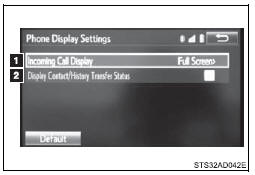
 Change the incoming call display.
“Full Screen”: When a call is received, the hands-free screen is displayed and can be operated on the screen.
“Drop-Down”: A message is displayed on the upper side of the screen.
 Set display of the contact/history transfer completion message on/off.
Voice command system
The voice command system enables the hands-free system to be operated using voice commands.
Operations of the voice command system can be performed by selecting the menu corresponding to each function on the screen.
Even if any menu is selected, commands displayed on all menus can be operated.
■ Using the voice command system
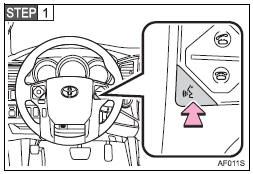
Press the talk switch.
To cancel the voice command system, press and hold the talk switch.
 After a beep sounds, say the desired command.
On the list screen, you can select the desired command.
■Microphone
■When using the microphone
●It is unnecessary to speak directly into the microphone when giving a command.
●It is not necessary to wait for the confirmation beep before speaking a command.
●Voice commands may not be recognized if: • Spoken too quickly.
• Spoken at a low or high volume.
• The roof or windows are open.
• Passengers are talking while voice commands are spoken.
• The air conditioning speed is set high.
• The air conditioning vents are turned towards the microphone.
●In the following conditions, the system may not recognize the command properly and using voice commands may not be possible: • The command is incorrect or unclear. Note that certain words, accents or speech patterns may be difficult for the system to recognize.
• There is excessive background noise, such as wind noise.
■ Casual speech recognization
Due to natural language speech recognition technology, this system enables recognition of a command when spoken naturally. However, the system cannot recognize every variation of each command.
In some situations, it is possible to omit the command for the procedure and directly state the desired operation.
Not all voice commands are displayed in the short cut menu.
This function is available in English, Spanish and French.
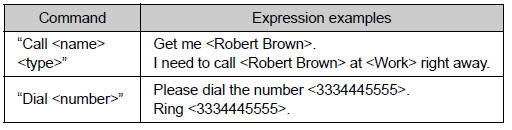
● Expression examples for each function
Stored owner’s manualImported HTML from the shared Autotk manuals tables. Not an official Toyota site.